Overview
Integrating Keycloak with Active Directory through User Federation enables organizations to leverage their existing AD infrastructure while providing modern Identity Management capabilities. This article explains the practical implementation of such a solution.
Goal - Single Sign-On (SSO): Existing AD users should be able to seamlessly authenticate with their familiar credentials in Keycloak-protected applications without requiring new account creation. A centralized IAM solution for all applications.
Architecture Overview
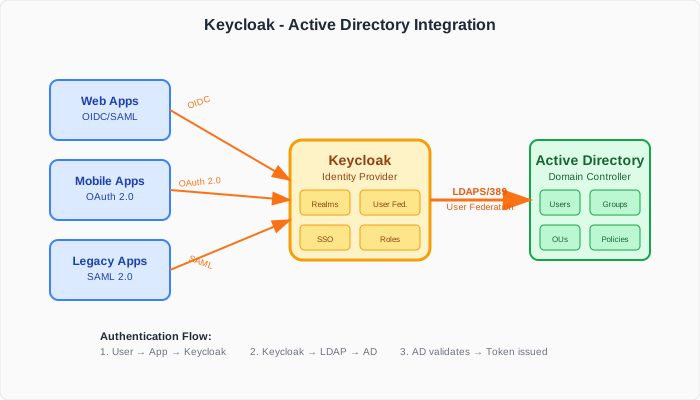
The architecture shows the data flow between the various components:
- Applications authenticate via OIDC/SAML with Keycloak
- Keycloak acts as Identity Provider and mediates between Apps and AD
- Active Directory remains the central user management system
- LDAP Protocol enables communication between Keycloak and AD
User Federation Configuration
1. Create LDAP Provider
Navigate in the Keycloak Admin Console to “User Federation” and create a new LDAP Provider:
Console Path: Realm → User Federation → Add Provider → LDAP

Connection URL: ldaps://dc1.example.com:636
Bind DN: CN=keycloak-svc,OU=Service Accounts,DC=example,DC=com
Bind Credential: [Service Account Password]
2. Basic Configuration
| |
3. Mapper Configuration
Create attribute mappers for the desired AD fields:
| |
Advanced Features
Role-based Access Control
Option 1: Automatic Role Assignment Based on AD Groups
Prerequisites for Option 1: Ensure that user roles are represented on the LDAP server as follows:
- An organizational unit (OU), e.g., “Roles” or “Groups”
- Groups under this unit representing individual user roles
- The cn attribute of groups matches Keycloak role names
- Users are added to groups via the member attribute
Option 2: Default Role for All LDAP Users
If AD groups don’t match Keycloak role names, use a default mapper that assigns a placeholder role to all LDAP users.
Password Sync
Note: For AD integration, it is recommended to continue password updates through AD and operate Keycloak in READ_ONLY mode.
Troubleshooting
Common Issues
- LDAP Connection Failed: Check firewall rules and certificates
- User Import Issues: Validate Users DN and Object Classes
- Group Mapping Errors: Ensure the Service Account has read access to groups
- Performance Problems: Enable Connection Pooling and Pagination
Best Practices
- Service Account: Use a dedicated Service Account with minimal permissions
- SSL/TLS: Always use encrypted LDAPS connections
- Caching: Configure appropriate cache settings for better performance
- Monitoring: Implement monitoring for LDAP connections and sync processes
- Testing: Test the integration with various AD group memberships
Conclusion
Integrating Keycloak with Active Directory via User Federation provides an elegant solution for hybrid Identity Management scenarios. Central management in AD preserves existing processes while making modern SSO features available for new applications.
This architecture forms a solid foundation for gradual migration to cloud-native identity solutions without disrupting existing workflows.